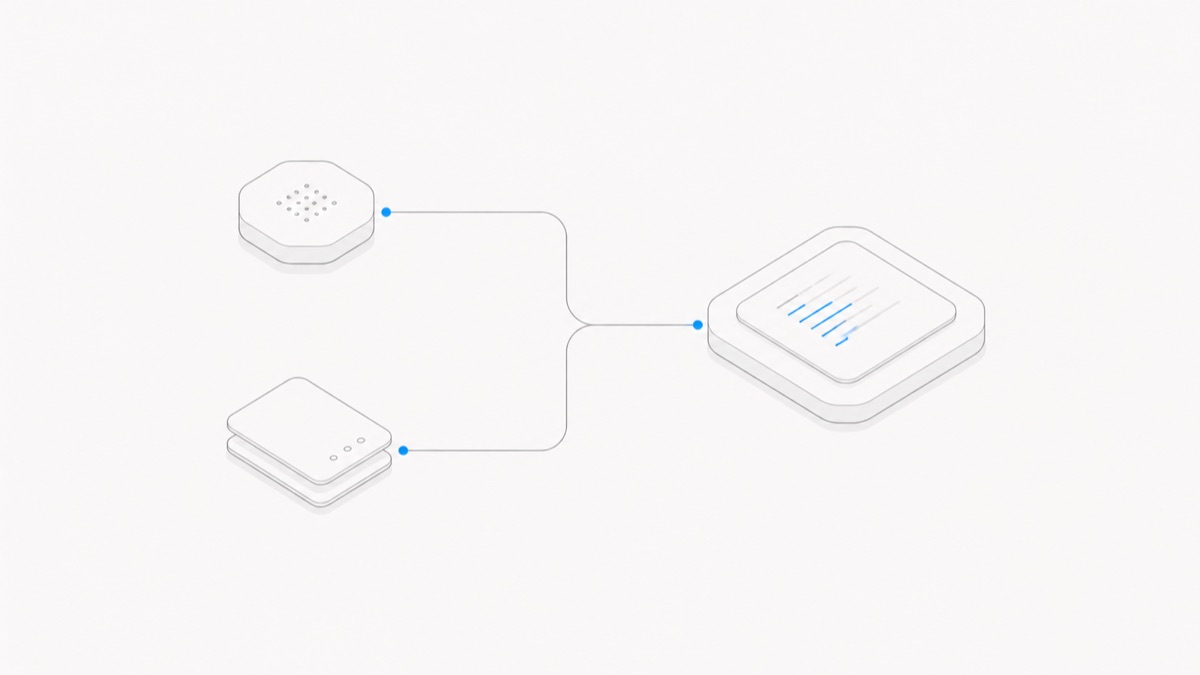
A Claude Code MCP setup connects the agent harness to tools and context exposed by a Model Context Protocol server. A server can add documentation search, issue tracking, design data, browser actions, database access, or a private internal tool. It can also expand the data and external actions available to the agent, so setup is both a capability decision and a permission decision.
This guide covers the current Claude Code-specific path: choose HTTP or STDIO, run claude mcp add, select local, project, or user scope, authenticate, verify the connection, and remove or replace the server. The commands and behavior were checked against Anthropic's official documentation on September 11, 2026. No third-party server or credential has been tested on your behalf.
MCP configuration belongs to the agent harness, not the model. If those layers are still easy to mix up, start with the agent harness versus model guide.
What Claude Code MCP setup does
MCP gives Claude Code a standard way to discover and call tools from a server. The server describes its tools and handles the actual connection to the external system. Claude Code decides when to propose or call those tools within its session and permission controls.
The setup has five separate parts:
- Transport: whether the server is a remote HTTP endpoint or a local STDIO process.
- Configuration: the server name, URL or command, arguments, and environment.
- Scope: whether the server loads for one project, is shared with that project's team, or is available across your projects.
- Authentication: OAuth, a token header, or credentials used by the local process.
- Verification: evidence that configuration was written, the server connected, and an intended tool completed safely.
Do not use an MCP connection as proof that a server is trustworthy. Claude Code can connect correctly to a server that exposes overly broad or dangerous tools.
Before you run claude mcp add
Use the MCP server owner's current documentation to collect:
- the exact HTTPS URL or local launch command;
- the supported transport;
- the required package, binary, and runtime version;
- the authentication method and minimum upstream permissions;
- the tools and side effects the server exposes;
- the intended users and projects;
- a removal or revocation path.
Review local commands before executing them. A STDIO server is a process that runs on your machine, not a passive configuration file. Inspect the package source and requested environment variables, and do not grant it more filesystem or credential access than the workflow needs.
For a remote server, verify the origin. Lookalike domains and copied setup snippets are not reliable. Prefer the provider's own documentation and an HTTPS endpoint it controls.
Step 1: Choose HTTP or STDIO
Anthropic's current Claude Code MCP documentation recommends HTTP for remote MCP servers. In JSON configuration, streamable-http is accepted as an alias for http.
SSE is deprecated in Claude Code's current documentation. Use HTTP when the server offers it. Since Claude Code v2.1.265, adding a remote server with --transport http tries HTTP first and automatically falls back to SSE when a legacy endpoint rejects HTTP. On an older Claude Code version, or when a provider explicitly requires a direct SSE connection, use --transport sse and plan to migrate when the provider adds HTTP.
Claude Code also documents WebSocket configuration, but it is a more specialized JSON-only path with different authentication limits. Do not choose it just because the endpoint is remote; follow the server's documented transport. WebSocket servers do not appear in claude mcp list, so verify them with claude mcp get <name> or /mcp instead.
Step 2: Add the server
For a remote HTTP server, the basic command is:
For example, using placeholders:
For a local STDIO server, use:
The double dash is important. Everything after it is passed to the local server command rather than parsed as a Claude Code option:
Treat package names and URLs here as syntax examples. Replace them only with values from the server's current official instructions.
When the command prints Added ..., Claude Code has written the configuration. That message is not evidence that credentials are valid, the server is reachable, or every tool works.
Step 3: Choose local, project, or user scope
Claude Code has three configuration scopes with different sharing behavior:
Local is the default. To make intent explicit, add --scope local. A project-shared server uses --scope project, and a personal cross-project server uses --scope user:
Project scope creates or updates .mcp.json, which can be committed so collaborators receive the same server definition. Keep credentials out of it. In interactive sessions, Claude Code asks for approval before using project-scoped servers from .mcp.json. Non-interactive claude -p, Agent SDK, and cloud sessions cannot show that approval prompt and load project-scoped servers without asking. If that behavior is not intended, block specific entries with disabledMcpjsonServers, exclude project settings from the execution environment, or use --strict-mcp-config to load only an explicit configuration.
If the same server name appears in more than one scope, an organization-provided managedMcpServers definition has the highest precedence in Claude Code v2.1.259 or later. Below that, Claude Code uses local, then project, then user, then plugin-provided, then claude.ai connector definitions. Entries are not field-merged. A managed or local definition can therefore hide a newer project definition until the governing definition is changed or the duplicate is removed.
OpenCode has a different configuration contract. Use the separate OpenCode MCP guide rather than copying its file paths or commands into Claude Code.
Step 4: Authenticate without exposing credentials
For a remote HTTP server with OAuth, first add the server, then authenticate inside Claude Code with:
Follow the browser login flow. Current Claude Code also supports authentication directly from an interactive shell:
OAuth applies to HTTP servers. Request the smallest scope the workflow requires, and use “Clear authentication” in /mcp or claude mcp logout <name> when access should be revoked.
Some providers use a token header instead of OAuth. Avoid pasting a long-lived token into a committed .mcp.json file. Project configuration supports environment-variable expansion:
Claude Code supports ${VAR} and ${VAR:-default} in command, args, env, URL, and headers. A missing variable without a default currently produces a warning and can leave the literal ${VAR} text in the loaded configuration. Do not assume expansion happened—check claude mcp list or /mcp for warnings and ensure the variable exists before connecting.
For STDIO, pass only the environment variables the server needs. Credentials for a local database, cloud account, or source-control provider should use a narrow upstream identity. Read-only access is a better first test than an owner-level token.
Step 5: Verify configuration and connection
Use the management commands in sequence:
claude mcp list shows configured servers and status. claude mcp get <name> shows details for one server. Current statuses can include connected, needs authentication, failed to connect, pending approval, rejected, or disabled.
Then open an interactive Claude Code session and run:
For a project-scoped server, review and approve the .mcp.json entry only after you trust the workspace and understand the command or URL. A cloned repository cannot make itself trustworthy merely by committing an approval setting.
If the server reports failure, use the status detail without publishing credentials. Common causes include a wrong URL, missing runtime, unavailable package, invalid token, missing environment variable, or an unapproved project entry.
Status is useful evidence, but it is not the final test. “Added” means written to configuration; “connected” means the transport and handshake worked. Neither proves that the tool result is correct or that a write is safe.
Step 6: Test one tool safely
Start with a harmless, narrowly scoped read:
- retrieve one known public documentation page;
- list a small set of test records from a read-only account;
- inspect metadata for a disposable project;
- ask for the server's available sources without creating or changing anything.
Before approving the call, check the selected Server, tool name, arguments, path, resource, and account. Afterward, compare the result with the source. A plausible answer is not enough if the wrong repository, database, or workspace was queried.
Only then test a write tool, and only against a disposable target. Confirm that Claude Code asks for the expected permission and that the upstream account cannot affect unrelated data.
MCP tools sit inside a larger trust boundary. Use the coding-agent workspace security checklist to review repository scope, local processes, network destinations, secrets, and external side effects together.
Manage, replace, or remove a server
Claude Code's current management commands are:
Use /mcp inside a session to inspect status and authentication. If the same name exists at more than one scope, remove the intended definition explicitly:
Remove a server when its owner changes, the endpoint is retired, the package is no longer trusted, or the workflow no longer needs it. For a remote server, claude mcp remove also deletes Claude Code's stored OAuth tokens and client registration for that server. That local cleanup does not necessarily revoke a provider-side grant or invalidate a separately issued token, so revoke or rotate upstream access when the provider supports it.
When replacing a server, avoid creating several same-name entries across scopes. Decide which definition should own the name, remove stale copies, add the new configuration, and repeat the full verification sequence.
Common setup failures
Added appears, but the server fails. The add command saved configuration; it did not validate every credential or tool. Use list, get, and /mcp to find the actual status.
A remote URL is treated like STDIO. In JSON, a URL entry needs an explicit "type": "http" (or the documented alternative). A URL without a type is a configuration error.
A local command's arguments are parsed by Claude Code. Put the server command and all of its arguments after --.
A project server stays pending approval. Start Claude Code interactively in the project, review the workspace trust prompt, then review the Server entry. Do not bypass the prompt before inspecting the configuration.
The wrong definition loads. Search local, project, and user scopes for the same server name. Higher-precedence local configuration may be hiding the team version.
Authentication succeeds but tools are too broad. Reduce the upstream OAuth scope or token permissions, disable the server until it is needed, and test with a limited account. Connection success does not justify owner-level access.
A secure default setup
- Use HTTP for a documented remote endpoint and STDIO for a documented local command.
- Treat SSE as legacy; on Claude Code v2.1.265 or later, start with HTTP and let the client fall back only when a legacy endpoint requires SSE.
- Begin with local scope while evaluating a server.
- Move to project scope only after the team reviews a secret-free
.mcp.jsonentry. - Use user scope only for a personal utility that truly belongs in every project.
- Prefer OAuth or protected environment-variable references over committed static tokens.
- Test with read-only upstream permissions and one harmless tool call.
- Verify
Added, configuration status, live connection, and tool behavior as separate stages. - Record how to remove the config and revoke the credential.
What to do next
After the Server works, document its owner, purpose, scope, transport, credential source, allowed tools, and review expectations. Re-run verification when its package, endpoint, authentication flow, or tool list changes.
MCP can make Claude Code more useful, but it does not make every project or workflow a good fit for the same agent harness. When you are ready to apply this setup in a managed Workspace, open Agent.Space and begin with one bounded task whose tools and permissions you can inspect.