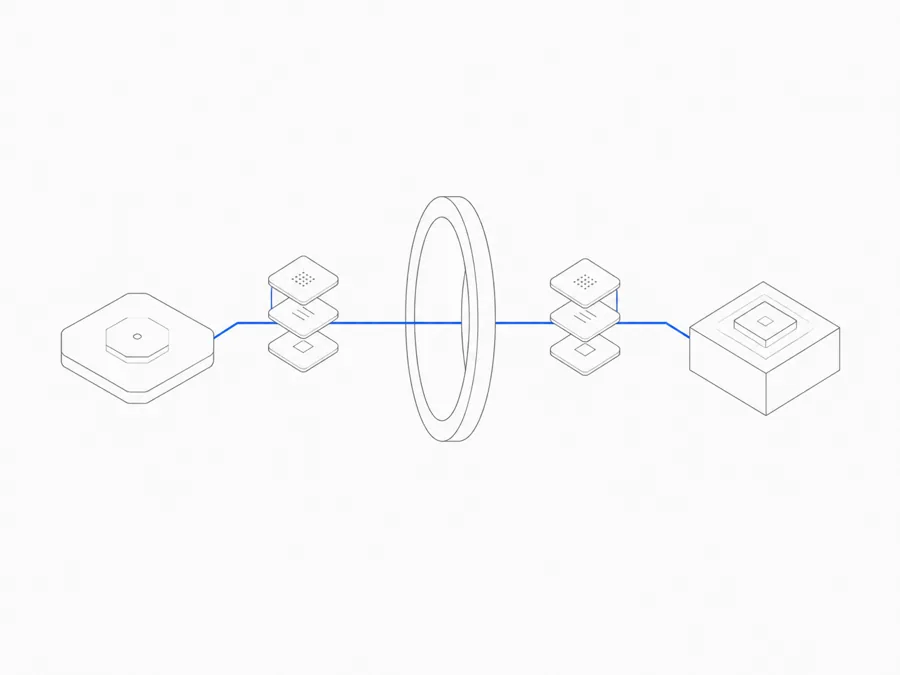
To connect MCP in stable OpenCode, add a local or remote server under the top-level mcp object in opencode.json, complete any required authentication, verify the server and its tools, and enable only what the task needs. The configuration shapes in this guide follow OpenCode’s official MCP server documentation.
MCP stands for Model Context Protocol. In practical terms, it lets an AI client discover and call tools or data exposed by a server. A local server normally runs as a process on the same environment; a remote server is reached over a network transport.
This guide answers one question: how to configure MCP servers inside stable OpenCode. Search results may also contain third-party projects named opencode-mcp that expose OpenCode as a server or bridge. Those are different products with their own trust and security review; their commands do not belong in this tutorial.
The configuration shapes below were checked against the official stable docs on August 26, 2026. A local OpenCode 1.18.23 check also loaded opencode mcp --help and opencode debug --help. No real MCP server, provider, or OAuth account was connected, so the examples remain safe setup templates rather than claims about a live integration.
Before you connect an MCP server
An MCP connection can grant an agent meaningful access. Before adding JSON, answer six questions.
1. Are you using stable OpenCode?
This article covers the stable opencode binary. OpenCode v2 is a separate beta using opencode2 and a different MCP configuration shape. Do not combine examples from the two documentation sets.
2. Who operates the server?
Verify the publisher, repository, release process, documentation, and expected network destination. A public directory listing or a familiar server name does not make a server official, safe, or compatible.
3. What can the server do?
List the tools and data it exposes. A filesystem, shell, database, issue tracker, or production API creates different risks. Start with the narrowest server and tool set that can complete the task.
4. Which transport does it use?
The current MCP specification includes stdio and Streamable HTTP transports. Stable OpenCode represents a process-backed connection as local and a URL-backed connection as remote. Protocol support does not prove that the current OpenCode client implements every transport option, so confirm the server and client support the same path.
5. How will it authenticate?
A remote server may use OAuth or headers. Never commit a token, paste it into an article, include it in a screenshot, or store it in a shared configuration merely because the JSON accepts headers. Use the current supported secret or OAuth path and confirm who can read the resulting credential.
6. What will it cost in context and attention?
MCP tool definitions consume model context. Enabling many servers can add irrelevant tools, increase selection ambiguity, and spend context before useful work begins. The stable OpenCode docs recommend enabling only the servers and tools needed for the task.
Configure a local MCP server in stable OpenCode
A local MCP server is launched as a process in the environment where OpenCode runs. Stable configuration uses the top-level mcp object, type: "local", a command array, and enabled.
The following is a schema template, not a working server command:
Replace the placeholders only with the exact executable and arguments from a trusted server’s current official documentation. Do not turn the template into a copy-paste command until that specific server has passed a no-secret smoke test.
What to verify for a local server
- OpenCode reads the intended
opencode.json. - The executable exists in the same environment and PATH used by OpenCode.
- The command starts without downloading or executing an unreviewed package unexpectedly.
- The process speaks the expected MCP transport rather than printing unrelated output.
- Its working directory, environment variables, filesystem access, and child-process permissions are understood.
- Stopping OpenCode or disabling the server leaves no unexpected process behind.
The command array is an execution boundary. Treat each element as code configuration, not harmless metadata.
Configure a remote MCP server
A remote server uses type: "remote" and a URL. Stable OpenCode also documents optional headers.
This no-secret example uses the reserved .invalid domain so it cannot be mistaken for a functioning service:
Replace the URL only after verifying the server operator and current official endpoint. Check spelling, scheme, redirects, certificate behavior, transport support, account scope, and the data each tool can receive.
Do not hard-code authorization secrets
Stable documentation permits headers for a remote connection, but this guide deliberately avoids a copy-paste bearer token block. Confirm the secure injection mechanism for the current OpenCode version and the server’s authentication design.
Do not use a bearer-token header fragment as the default secret-storage solution. Prefer the server’s supported OAuth flow or a current OpenCode secret-injection mechanism after it has been verified. If no safe mechanism can be demonstrated, omit header configuration. Screenshots must hide tokens, authorization codes, account identifiers, private URLs, and callback parameters.
Authenticate a remote server with OAuth
Stable OpenCode documentation describes remote MCP OAuth and CLI management paths for listing, authenticating, logging out, and debugging servers.
OpenCode 1.18.23 CLI help exposes the MCP management path. The official docs list these command shapes:
The local check confirmed the command group exists, but it did not complete authentication against a live server. If your installed CLI changes arguments or uses an interactive selector, follow its current help instead of preserving stale syntax.
A safe OAuth flow should be reviewed in this order:
- Confirm the configured server name and URL.
- Start authentication from the stable OpenCode CLI.
- Read the authorization page’s publisher, requested scopes, account, and redirect before approving.
- Return to OpenCode and confirm status without exposing the code or token.
- Inspect the tools actually made available.
- Test logout and verify what credential or session is revoked.
OAuth proves an authorization flow completed; it does not prove the server is trustworthy, the scopes are minimal, or every tool is appropriate for the project.
Verify the connection and limit available tools
A connection is not complete merely because JSON parses.
Check server status
Use the current stable MCP list or status path and record the server state. For a local server, check whether the process stays running and reports protocol errors. For a remote server, distinguish URL, transport, authentication, authorization, and server errors.
Confirm tool discovery
Open a disposable test project and inspect the tools OpenCode says the server provides. Compare that list with the server’s current official documentation. An unexpected filesystem, shell, write, delete, or administrative tool is a reason to stop and review—not a bonus capability.
Limit what is enabled
Start with one trusted server. If OpenCode and the server provide tool-level controls, expose only the tools needed for the test. The exact permission shape is version- and integration-sensitive, so it must come from current stable documentation rather than a guessed JSON block.
Run a harmless test
Choose an operation that reads non-sensitive test data and has an observable result. Do not use production credentials, customer data, a destructive tool, or a write action for the first test. Record what OpenCode sent, what the server returned, and what appeared in the agent output—within the logging and privacy rules of the environment.
Watch context use
Compare a Session with the server disabled and enabled. Observe the tool catalog and relevant usage information rather than claiming a universal token cost. If a server is not needed for the current task, disable it.
Troubleshoot OpenCode MCP errors
Work from configuration toward transport, authentication, tools, and context. Changing several layers at once makes the cause harder to identify.
Redact before sharing logs
MCP debug output can contain URLs, account identifiers, headers, tool arguments, file paths, or returned data. Remove secrets and private information before pasting logs into an issue, article, or support channel. Redaction itself should be checked; simply hiding the word token may not remove the credential value.
Stable OpenCode vs v2 MCP configuration
This guide uses the stable schema:
- binary:
opencode; - config: top-level
mcp; - server state:
enabled.
The separate v2 beta documentation uses a different track, including:
- binary:
opencode2; - config path:
mcp.servers; - server state:
disabled.
Those differences are a warning, not an invitation to combine fields. Before following a v2 example, verify whether v2 remains beta and whether any behavior has moved into stable. Keep one configuration internally consistent with one binary and documentation set.
OpenCode Skills are not MCP servers
An OpenCode Skill is a reusable SKILL.md instruction package loaded through the skill tool. An MCP server is a local or remote process that exposes tools or data.
Use a Skill to teach a repeatable method. Use MCP to connect a live external capability. A Skill can explain when and how to use an MCP tool, but it should not contain the tool’s token or pretend to establish the server connection. The separate OpenCode Skills guide covers discovery and permission.skill behavior.
Using MCP with OpenCode in Agent.Space
OpenCode's upstream MCP support does not automatically mean that the same setup is available in Agent.Space. A managed environment can differ in command execution, networking, secret storage, callbacks, permissions, transports, and persistence.
Before relying on an Agent.Space MCP workflow, use the current product interface and public product pages to confirm that OpenCode MCP configuration is available, which connection types and authentication paths are supported, what tools and permissions are exposed, and how to disable or remove a server. If those controls are not documented or visible, treat this tutorial as a local or self-hosted OpenCode guide rather than a confirmed Agent.Space setup path.
OpenCode MCP setup checklist
Before calling the integration ready:
- confirm stable
opencode, not betaopencode2; - verify the server’s publisher, current docs, endpoint or executable, and transport;
- use stable top-level
mcpand the currentenabledfield; - keep real secrets out of committed JSON, screenshots, logs, and prompts;
- complete OAuth only after reviewing publisher, account, scopes, and redirect;
- confirm the observed server and tool list;
- start with a harmless test in non-sensitive data;
- disable unnecessary servers and tools;
- test logout, disable, and failure recovery;
- redact debug output before sharing it.
Configure one trusted server first. A small, observable connection is easier to secure and troubleshoot than a large catalog of tools loaded all at once. For the hosting decision around this configuration, return to the OpenCode cloud Workspace guide. If the requirement is a persistent managed project boundary, review the Agent.Space Workspace separately.
Next step
Connect one trusted MCP server in a disposable stable OpenCode project, verify its status and tool list, and enable only what the task requires. If the CLI is not ready, start with installing OpenCode; if you need reusable instructions instead of a live connection, use OpenCode Skills.