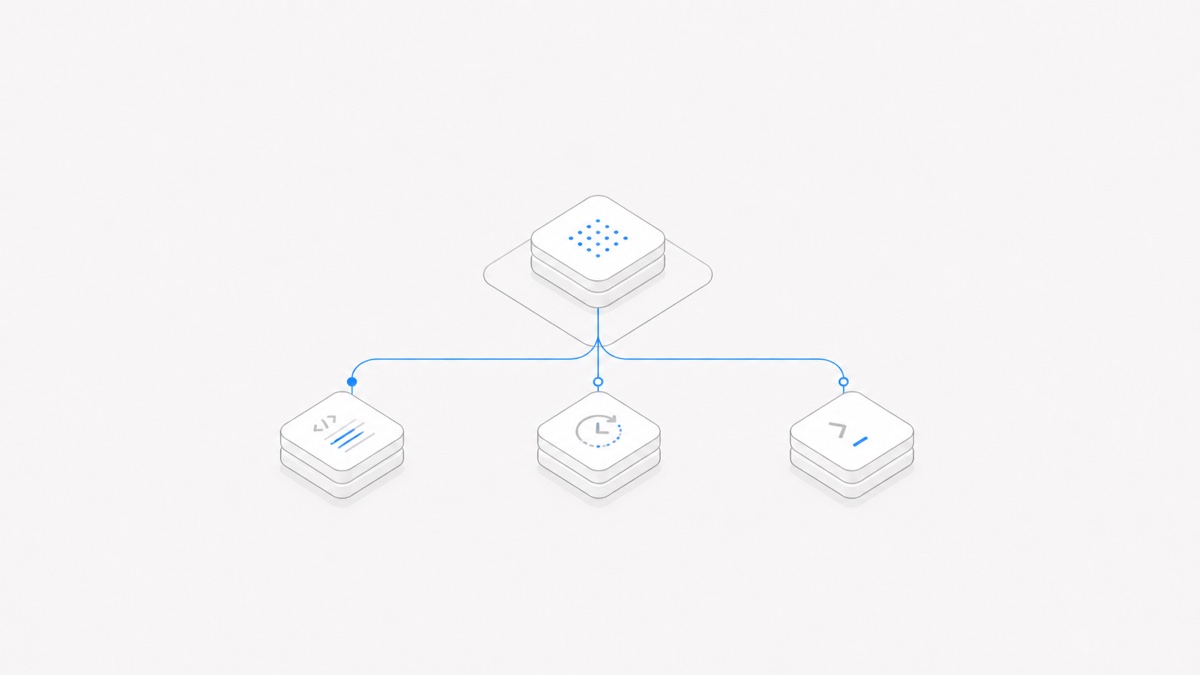
A Codex MCP setup gives Codex access to tools and context exposed by a Model Context Protocol server. The setup is not complete just because an add command prints successfully. You still need to choose the correct transport, place the configuration at the right scope, authenticate without leaking credentials, limit the tools that can act, and verify the live connection.
This guide follows OpenAI's official Codex MCP configuration as checked on September 1, 2026. It does not claim that any third-party server was tested with your account. Server URLs, packages, authentication requirements, and tool behavior can change, so compare every example with the server owner's current instructions.
MCP is a tool-and-context extension layer. It is not the interface for embedding Codex itself in an application; that separate decision is covered in the Codex SDK, App Server, and Exec comparison.
What a Codex MCP setup changes
The official Codex MCP documentation says the ChatGPT desktop app, Codex CLI, and Codex IDE extension can connect to MCP servers and share MCP configuration on the same Codex host.
An MCP server can expose tools such as documentation search, browser control, design data, issue tracking, or database queries. Once connected, Codex can see the server's advertised tools and instructions. That does not make every tool safe or automatically approved. The MCP server defines what it offers; Codex configuration and the surrounding permission system determine what is enabled and when a person must approve an action.
Think of setup as four separate contracts:
- Transport: how Codex reaches the server.
- Authentication: which identity or token the server accepts.
- Configuration scope: which Codex clients or projects load the server.
- Tool authority: which tools are enabled and how approval works.
Before you add a server
Collect these details from the MCP server's official documentation:
- Is it a remote URL or a local command?
- Does it specify Streamable HTTP, STDIO, or a legacy transport?
- Does it require OAuth, a bearer token, custom headers, or no authentication?
- Which package, binary, runtime, and version does a local server require?
- Which tools can read data, write data, or trigger external side effects?
- Does the server need access to the current repository, another directory, or the network?
Inspect a local server command before you run it. STDIO means Codex starts a process on your machine; a copied npx, uvx, Python, or binary command can execute with the filesystem and environment access that your local policy allows. For a remote server, verify the exact HTTPS origin and the organization that controls it.
Step 1: Choose STDIO or Streamable HTTP
Codex currently supports two main MCP transports on a Codex host:
Choose the transport the server operator documents. A URL is not interchangeable with a local launch command, and a server's authentication flow usually depends on its transport.
For STDIO, you need a command and any arguments or environment variables. For Streamable HTTP, you need the server URL and may need OAuth or an authorization header. OpenAI's current documentation lists bearer-token and OAuth support for HTTP servers.
Step 2: Add the MCP server
For a local STDIO server, the official CLI shape is:
The double dash separates Codex options from the command it should start. OpenAI's current example adds Context7 like this:
Do not copy the example merely because it is convenient. Confirm the package name and behavior with the server owner, and avoid putting a long-lived secret directly in shell history.
For a remote Streamable HTTP server, the CLI accepts a URL. When a provider requires a pre-registered OAuth client, OpenAI shows this form:
If the provider does not require a custom client ID, follow its current instructions and inspect codex mcp --help for the exact available flags in your installed version.
You can also configure servers directly in TOML. Every entry lives under a [mcp_servers.<server-name>] table. A minimal STDIO example is:
A minimal remote example is:
These are shape examples, not working credentials or endorsements of an actual server.
Step 3: Choose the configuration scope
By default, Codex stores MCP configuration in:
That is the host-level Codex configuration. The ChatGPT desktop app, Codex CLI, and IDE extension on the same Codex host share it, according to the official guide.
A trusted project can instead define:
Use the host-level file for a personal utility you intentionally want available across projects. Use project scope when the server belongs to one repository and the project is trusted. Project configuration can be shared with the repository, so it must contain only settings that are safe for every authorized collaborator to see.
Do not commit tokens, static authorization headers, or machine-specific secret values. Also do not trust a project-scoped local command merely because it came from a repository. Review the command, package source, requested environment variables, and expected tool list before allowing it to run.
Codex and OpenCode do not use the same commands or configuration contract. If you maintain both harnesses, the OpenCode MCP guide can help you keep their setup paths separate rather than copying one config file into the other.
Step 4: Authenticate without committing secrets
For a remote HTTP server, prefer OAuth when the server supports it. Add the server, then run:
Codex supports OAuth discovery and registration flows described in the official documentation. A server can advertise supported scopes; otherwise Codex can fall back to scopes configured for that server. Ask only for the scopes the intended tools need.
For a bearer token, keep the value in the environment and reference the variable name from TOML:
For a custom header sourced from the environment:
OpenAI also supports static http_headers, but a static secret in a shared configuration file is usually the wrong default. Environment references reduce accidental commits; they do not remove the need to protect the environment, shell history, process logs, and upstream token itself.
For STDIO servers, use env_vars to forward selected existing variables or env for values deliberately set for that process. Forward the smallest set possible. A local server that receives your entire credential-rich environment has a larger blast radius than one that receives a single narrowly scoped token.
Step 5: Limit tools and approvals
A successful connection can expose more tools than the task needs. Codex supports server-level controls such as:
enabled_tools is an allowlist. disabled_tools can remove tools after the allowlist is applied. The current approval modes are auto, prompt, writes, and approve; writes prompts for tools that the server does not mark as read-only. Per-tool overrides are also available.
Tool metadata is part of the trust model, not proof of harmless behavior. A server may label a tool incorrectly, a read action may expose sensitive data, and a broadly scoped search tool may return untrusted instructions. For a new server:
- allowlist only the tools needed for the first workflow;
- keep write-like and external side-effect tools behind approval;
- review arguments before approving a call;
- use a test account or read-only upstream identity where possible;
- set reasonable startup and tool timeouts rather than hiding a broken server behind indefinite waits.
The general coding-agent workspace security checklist covers the repository, network, secret, and approval boundaries around these tool calls.
Step 6: Verify all three layers
Verify the setup in order. Each layer answers a different question.
1. Is the configuration present?
Run:
Confirm that the expected server name and transport appear. If the server does not appear, check which config.toml Codex is loading, whether the project is trusted, and whether the TOML is valid.
2. Is the server active in this Codex session?
Start the Codex TUI and run:
OpenAI documents /mcp as the view for active MCP servers. Confirm that authentication is complete and the expected server is available. If OAuth is required, finish codex mcp login <server-name> and then recheck.
3. Can one intended tool complete a harmless action?
Ask Codex for a narrowly scoped, read-only operation—for example, list the server's available documentation sources or retrieve a known public page. Check that:
- the intended server and tool are selected;
- the arguments contain no unexpected path, secret, or broad query;
- the result matches the source;
- no write, message, purchase, issue creation, or other side effect occurs.
Only after that should you test a write tool, using a disposable target and an explicit approval. “Added,” “listed,” “active,” and “completed a safe tool call” are four different levels of evidence.
Common setup problems
The server is listed but unavailable in the session. Check /mcp, restart the relevant client if its setup flow requires it, and confirm the same Codex host is loading the expected configuration.
A STDIO server fails at startup. Run the documented command separately only if you trust it. Check that the runtime and package exist, arguments follow the -- separator, required environment variables are present, and the configured cwd is valid.
An HTTP server returns an authentication error. Confirm the URL, OAuth login state, bearer-token variable, and requested scopes. Do not paste the token into a public issue or diagnostic output.
The server connects but a tool is missing. Inspect enabled_tools and disabled_tools, the server's current advertised tool list, and any organizational policy. A tool renamed or removed upstream cannot be restored by a stale local config.
The wrong projects can see the server. Move the entry between host-level and trusted project-level configuration. Do not solve a scope mistake by duplicating the same server and credentials everywhere.
A safe default checklist
- Use the server owner's current official URL or launch command.
- Prefer Streamable HTTP for a documented remote endpoint and STDIO for a documented local process.
- Put personal cross-project tools in
~/.codex/config.toml; use.codex/config.tomlonly for a trusted project's shareable configuration. - Keep secrets in protected environment variables or OAuth storage, not committed TOML.
- Request the smallest OAuth and upstream account scope.
- Start with a read-only tool allowlist and approval for writes.
- Verify configuration, active connection, and one harmless read-only call separately.
- Review and rotate credentials if they ever appear in a prompt, log, shell history, or commit.
What to do next
Once the server passes the three-layer verification, document its purpose, owner, transport, scope, required variables, allowed tools, and removal procedure for your team. Recheck that contract whenever the Server package, URL, or advertised tools change.
MCP makes a Codex harness more capable, but the right setup begins with choosing the right execution entry and permission boundary. When you are ready to use it on real work, open Agent.Space and begin with one low-risk task whose tools and approvals you can inspect.